
Text to Generation Placeholder
Describe the prompt-only workflow here, including what users can create, which parameters matter, and where this model performs best.
Flux Kontext Pro - Standard model with balanced performance, supports generation and editing
Describe the prompt-only workflow here, including what users can create, which parameters matter, and where this model performs best.
Describe image, video, or other reference-based workflows here. This card is fully controlled by the model readme configuration.
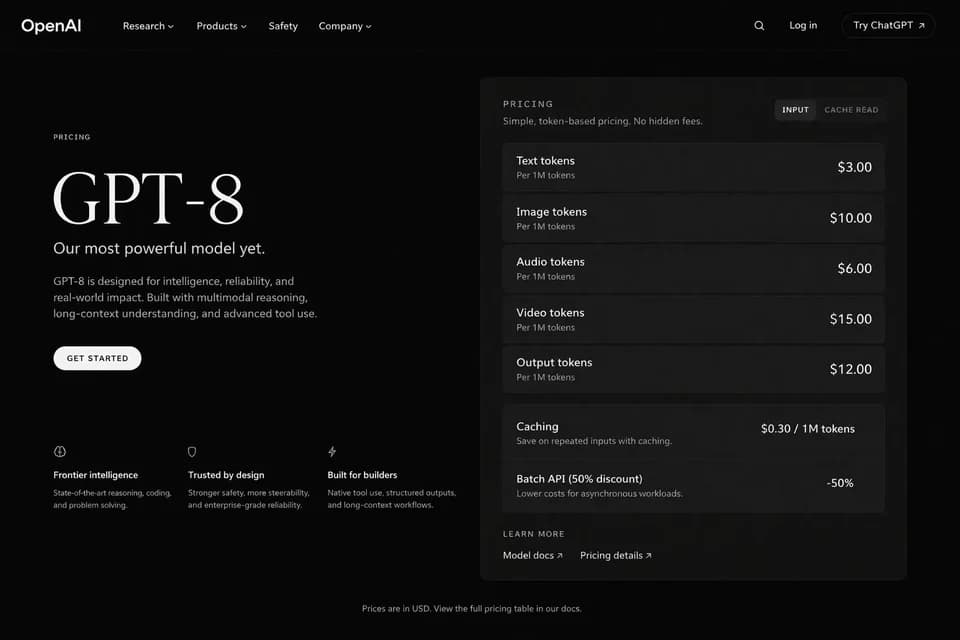
Use this area for a feature explanation paired with a screenshot or generated example. The image, title, and paragraph are all configurable.
Use this feature row for text rendering, consistency, editing quality, cinematic motion, or any other model-specific capability.
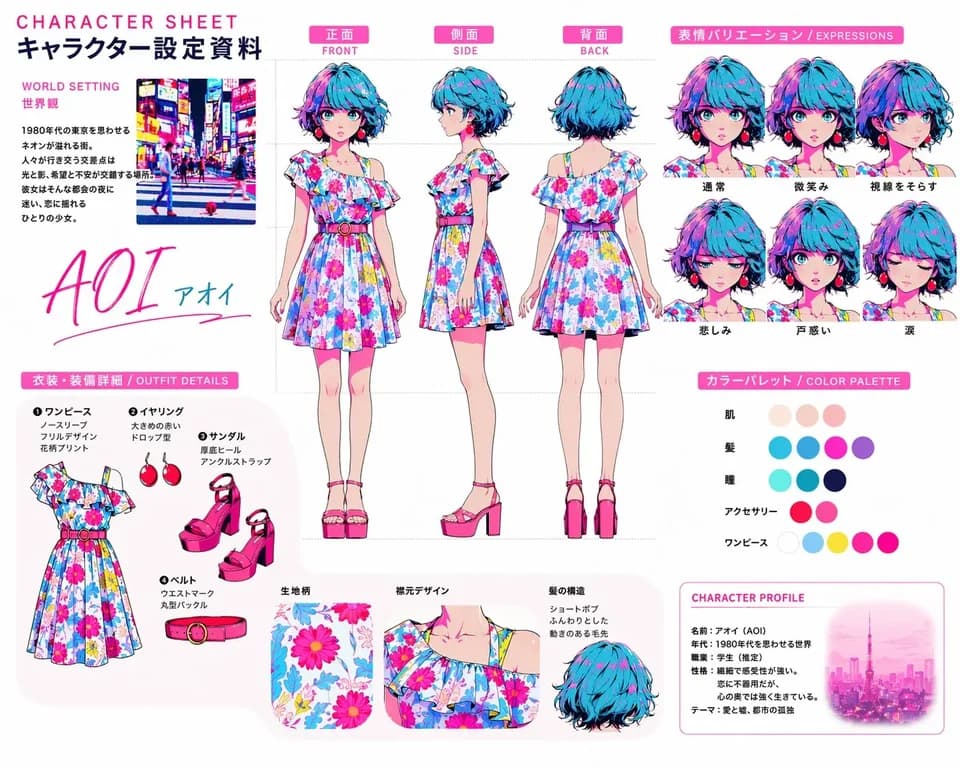
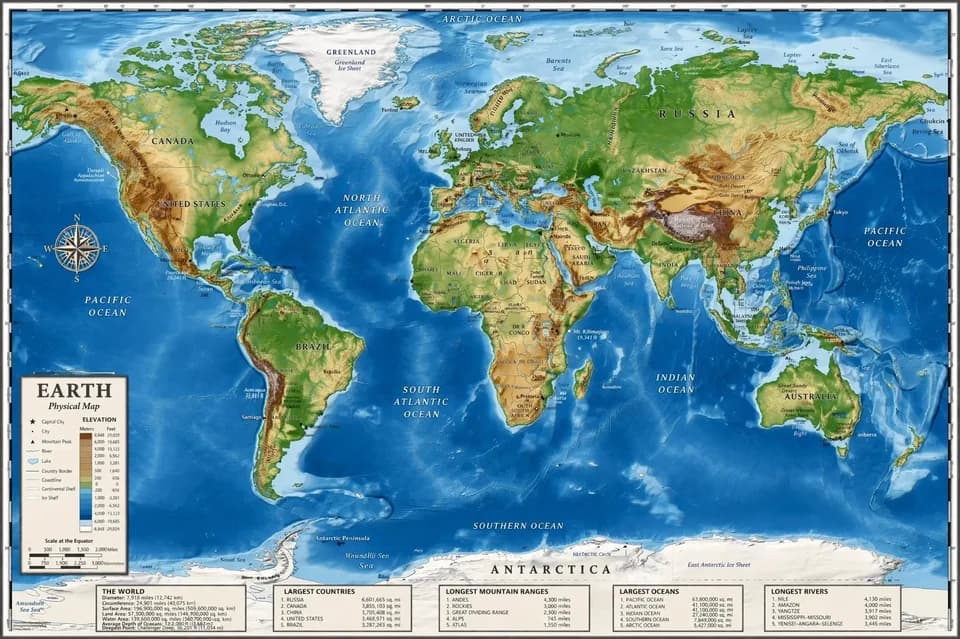
Replace this with a concrete capability claim and example. Keep the copy specific enough for SEO and useful enough for users comparing models.
This row mirrors the long README style in the reference page and supports alternating image placement for visual rhythm.
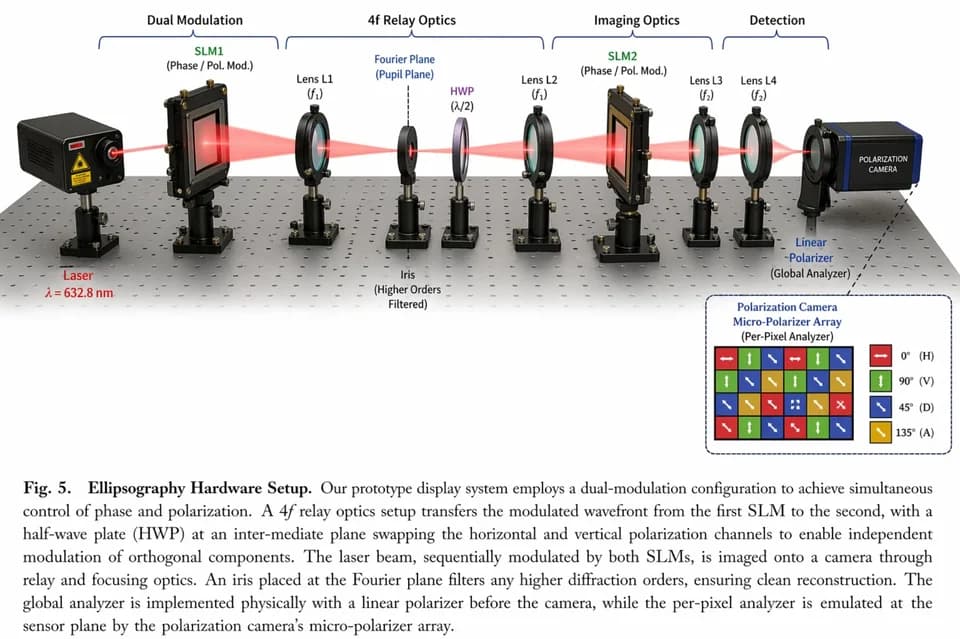
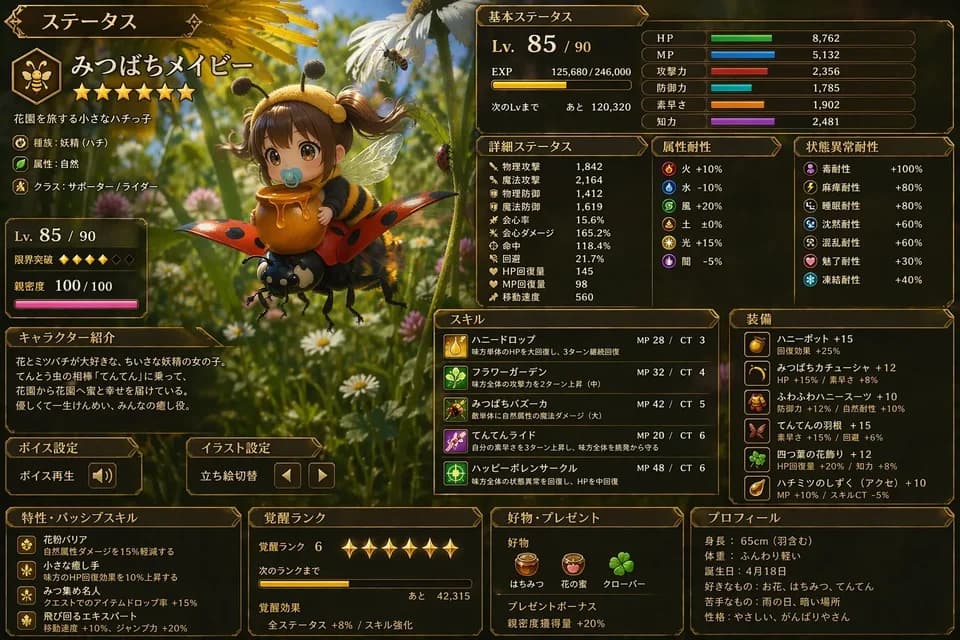
Use the final row for a high-value scenario, production workflow, or differentiating strength that should remain visible before the access section.
Placeholder step copy for account, workspace, or project setup. Replace it with the actual onboarding instruction.
Placeholder step copy for selecting the model, generation mode, and input type.
Placeholder step copy for prompt writing, uploads, parameter selection, and quality settings.
Placeholder step copy for reviewing outputs, adjusting settings, and running another generation.
Placeholder step copy for downloading assets, using APIs, or moving results into production workflows.
Placeholder value card for ads, product visuals, campaigns, or brand content.
Placeholder value card for repeatable workflows, templates, localization, or batch iteration.
Placeholder value card for social content, storytelling, education, or personal creative work.
Placeholder value card for API integration, automation, product features, and internal tools.
Placeholder reason card for unified model access, shared credits, and consistent generation history.
Placeholder reason card for prompt testing, parameter comparison, and production-ready iteration.
Placeholder reason card for deployment, workflow integration, and managed access.
Placeholder FAQ answer. Replace this with a concise description of the model and its supported workflows.
Placeholder FAQ answer for access, account, API usage, or product entry points.
Placeholder FAQ answer for text prompts, images, videos, audio, or other reference assets.
Yes. Hero copy, cards, images, feature rows, steps, value sections, reasons, and FAQ items all come from the model readme configuration.
Edit the corresponding model entry in src/config/models/model-readmes.ts.